

Fenestra brings renders, edits and video into one architectural project workspace. Start from a sketch, model view or photograph, use references to establish the look, then refine the images and animated shots you want to show the client.
The best AI rendering software for your practice also depends on where you want to work. Some tools sit inside your modelling application. Others take an image into a browser workspace. ComfyUI lets you build the generation workflow yourself, while a hybrid renderer such as D5 keeps a model-based production workflow alongside AI assistance.
AI rendering tools compared by workflow
| Tool | Fits this work | Main distinction |
|---|---|---|
| 1. Fenestra | Design development and presentation | Renders, edits, visual styles, video and project review |
| 2. Visoid | Model-to-render exploration | Architectural rendering with software plugins |
| 3. MyArchitectAI | Image-to-render tasks | Upload, render, edit and animate |
| 4. Spacely AI | SketchUp-connected visualisation | Rendering, editing and a SketchUp extension |
| 5. Gendo | Architectural image iteration | Design canvas with targeted and conversational tools |
| 6. xFigura | Shared visual exploration | Architecture-focused AI canvas |
| 7. Veras | CAD and BIM-connected generation | Integrations with supported modelling applications |
| 8. mnmlai | Guided rendering and variations | Image tools alongside a board-based workflow |
| 9. ComfyUI | Custom generation pipelines | Reusable node graphs and model-level configuration |
| 10. D5 Render | Model-based visualisation | Real-time rendering with AI-assisted tools |
For room redesign, furniture shopping and editable interior layouts, see our separate best AI interior design tools comparison.
1. Fenestra: design development and presentation
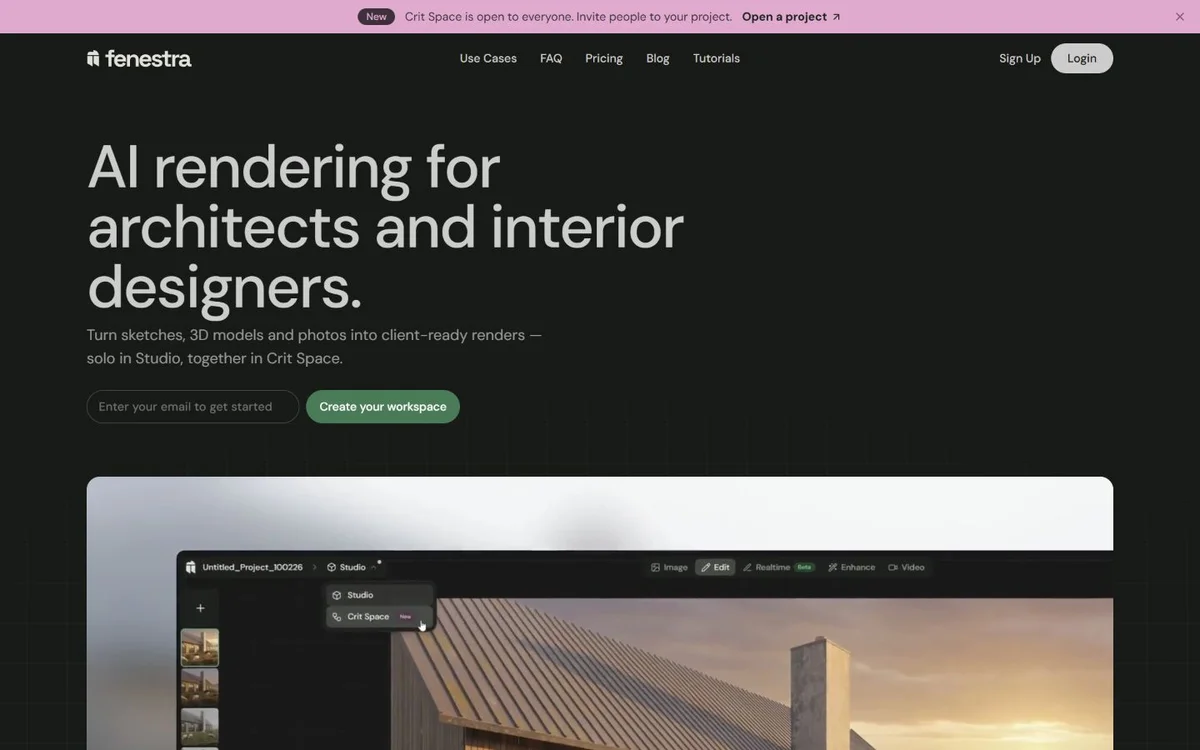
An architectural project needs more than one polished image. You may need an exterior material study, an illustrated view for a concept board, a closer camera angle and a moving shot for the presentation. Fenestra brings image creation, editing, enhancement and animation into the same project workflow.
Use a reference to explore a material palette, edit a selected area, try an illustrated treatment and animate the view you want to present. You can choose between the image and video models in the same workspace.
Develop the visual language of your project
A photoreal render is useful when you want to discuss materials and light. An illustrated version can suit an earlier conversation about form and character. This existing Fenestra example shows the same street view in two visual treatments.

Bring the presentation into motion
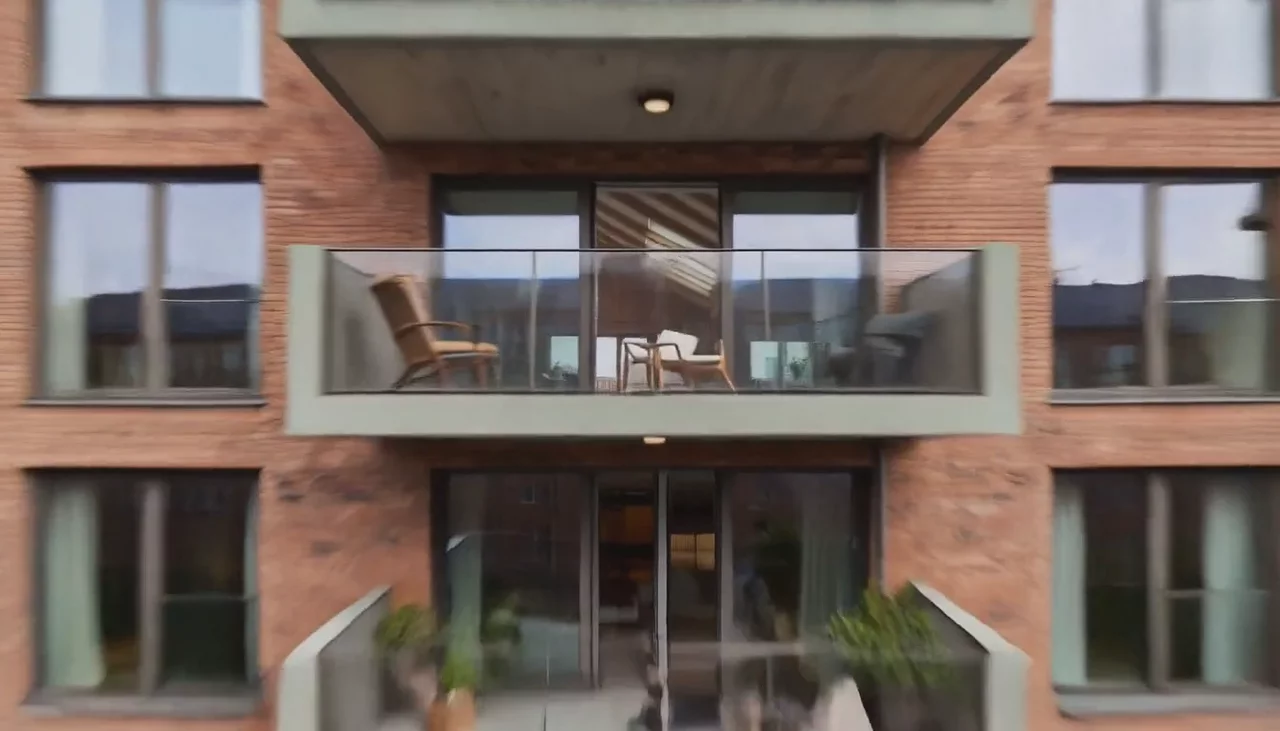
Fenestra also turns stills into architectural video. This existing example moves from an exterior view to an interior using start and end frames. It shows a presentation transition rather than a measured route through a model.


Work solo or bring the team into Crit Space
Fenestra works for a practice of one and for a project with several people involved. Develop the scheme yourself, then use Crit Space to keep source images, references, generated options and video together when colleagues join the work.
Editors can generate on the shared board. Viewers can follow the project, while notes, markup and grouped options give the review a clear visual context. A public viewing link lets a client explore the presentation without editing it.
Viewer invitations and public links are available on every plan. The board owner needs Pro or above to invite editors; invited people generate with their own credits. See how sharing works.
Where to draw the line: check generated details against the design. Use model-based rendering for exact scene reproduction, verified views or a camera path that must be repeatable. AI presentation video can infer geometry beyond the supplied frames.
Start with Fenestra: open a project, bring a sketch or view, and develop a design direction. See current plans, the editing workflow and architectural rendering styles.
2. Visoid: rendering connected to your modelling workflow
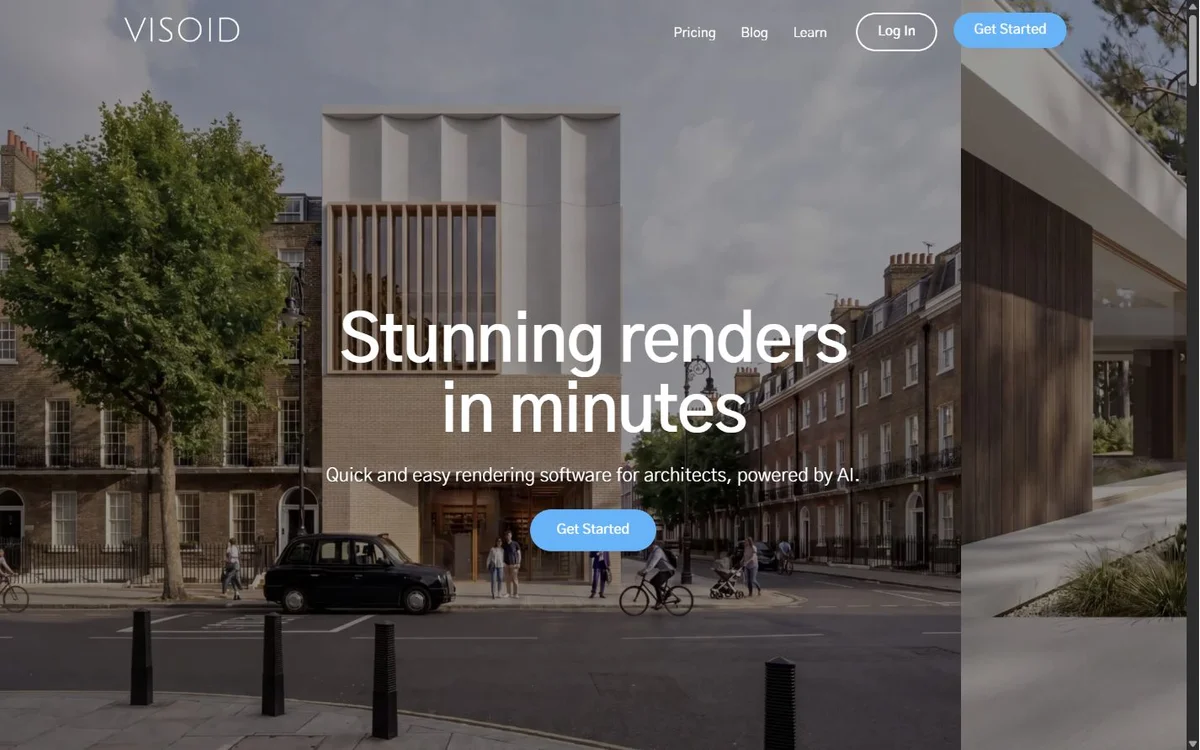
Visoid focuses on AI rendering for architects. It lists plugins for SketchUp, Revit, Rhino, Archicad and Miro, and shows reference-led rendering and material studies.
The Pro plan is $29 per month with 500 credits and output up to 2K. Premium is $79 per month with 2,000 credits and output up to 4K. Check your modelling-software version against the relevant plugin before subscribing.
3. MyArchitectAI: a direct image-to-render workflow
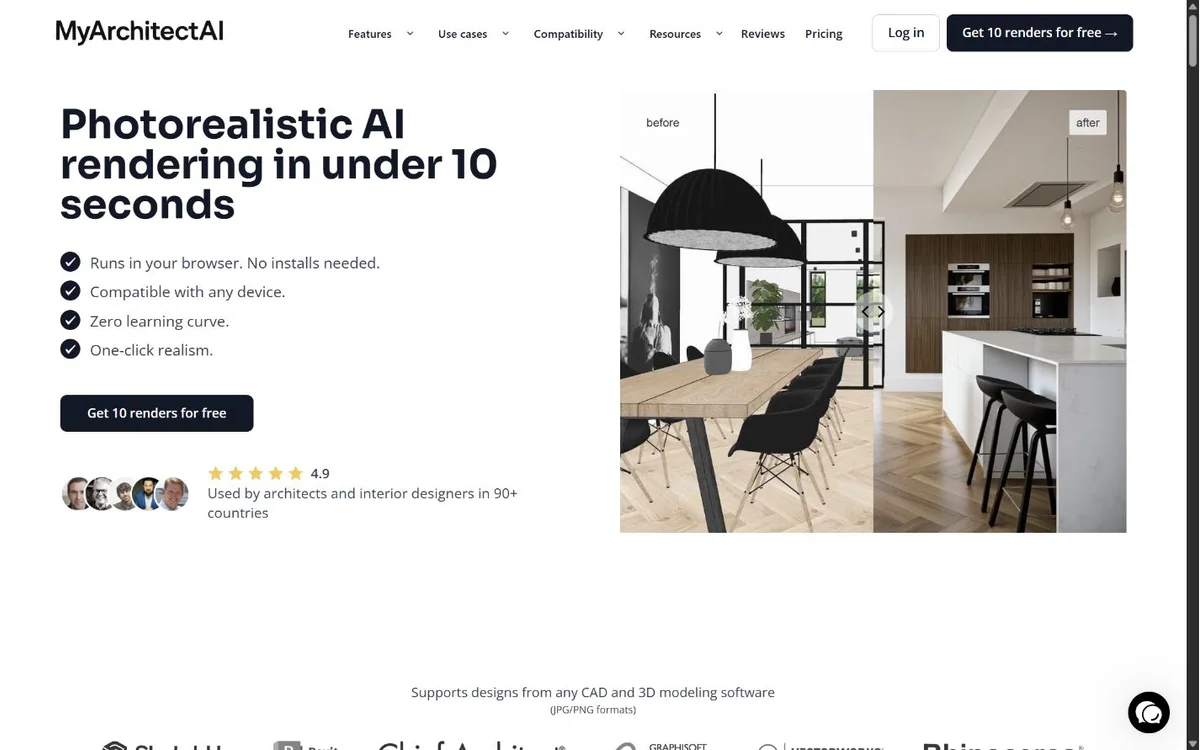
MyArchitectAI describes a browser workflow starting from JPG or PNG design images. Its tools cover rendering, reference-based style transfer, selected-area edits, enhancement and animation.
Starter costs $29 per month for one seat, with unlimited renders, edits and enhancement up to 4K. Studio costs $49 per month and adds 50 animations and enhancement up to 8K. Test window divisions, facade patterns and openings on your own image before committing to either plan.
4. Spacely AI: SketchUp-connected rendering and editing
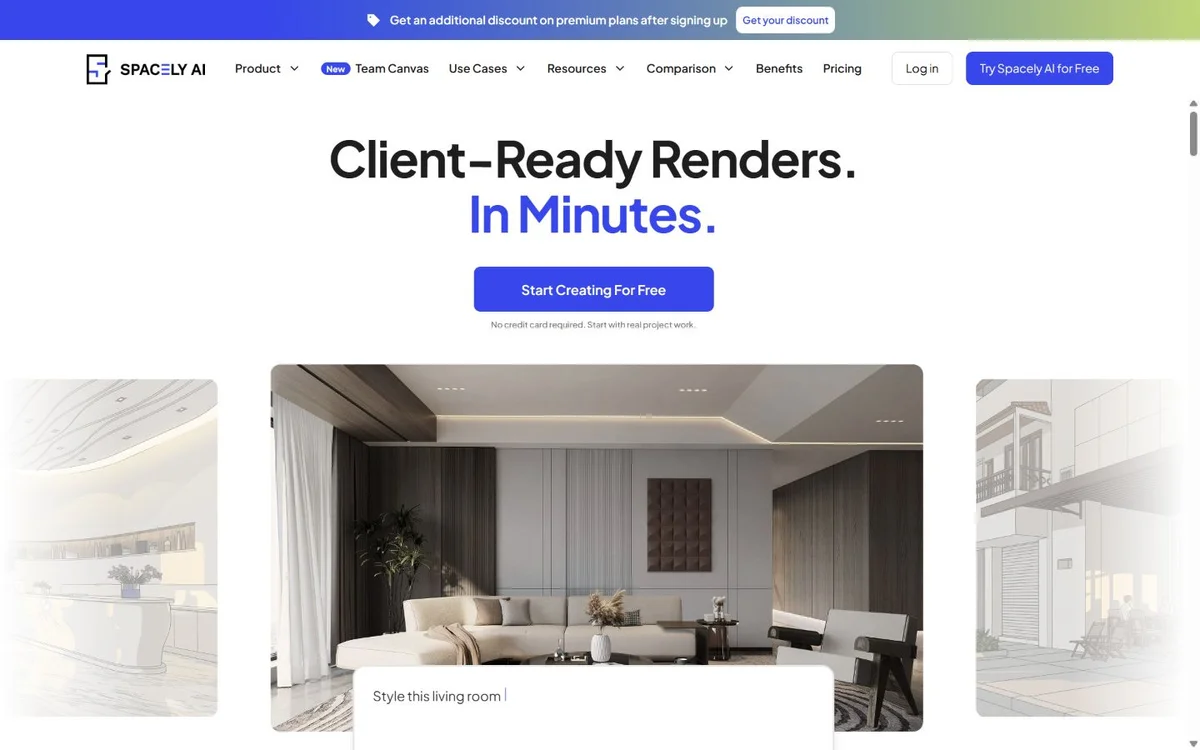
Spacely AI offers rendering, lighting, furnishing, editing and enhancement. Its SketchUp extension provides a route from the modelling application, and it also promotes a shared Team Canvas.
Consider it for interior and architectural work where a SketchUp bridge is central to the process.
Personal costs $25 per month for 500 credits and one seat. Studio costs $50 per month for 1,500 credits and up to two seats, adding Pro rendering and 4K output. Team collaboration is listed as an add-on, so check its cost separately from the seat allowance.
5. Gendo: architectural editing on a design canvas
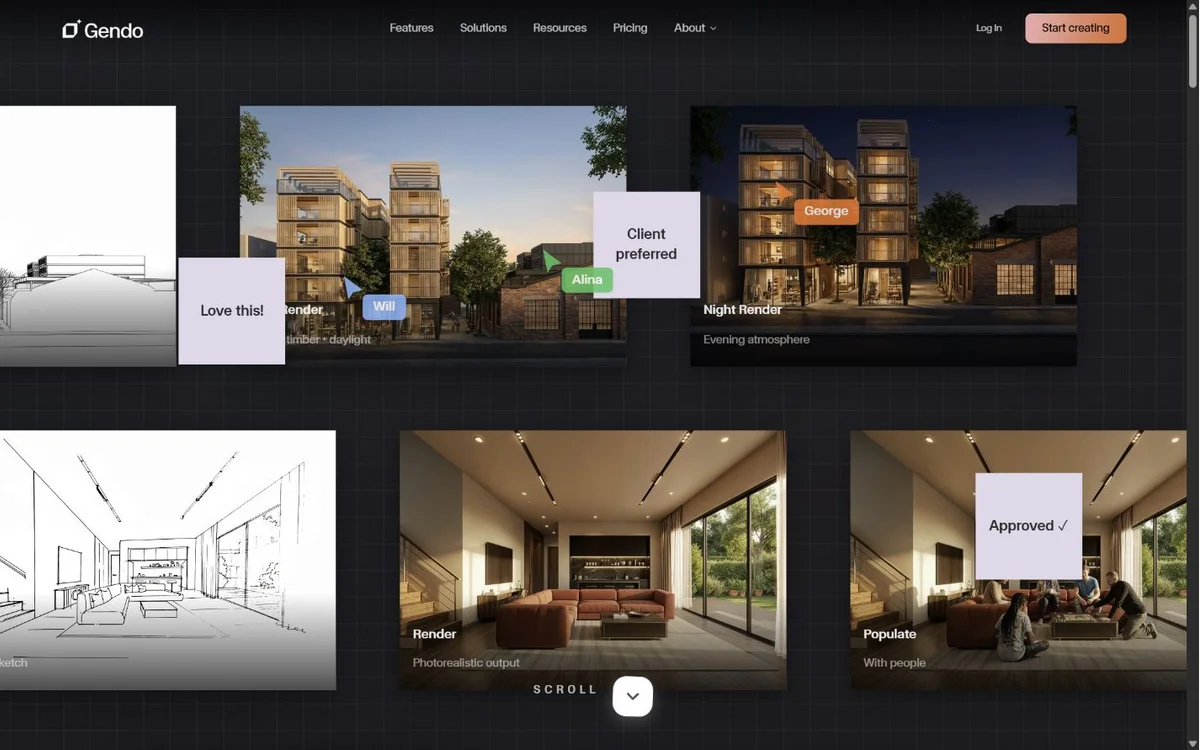
Gendo offers architectural rendering, region-based edits, material changes, conversational editing, upscaling and video on a design canvas.
Studio pricing is £79 per month, or £790 billed annually, for up to five team members. Unlimited image generation is subject to fair use. Studio includes a one-time 15 seconds of video; further video needs packs or the higher Studio Scale plan. Budget for that distinction if animation is a regular deliverable.
6. xFigura: a shared AI canvas for architects
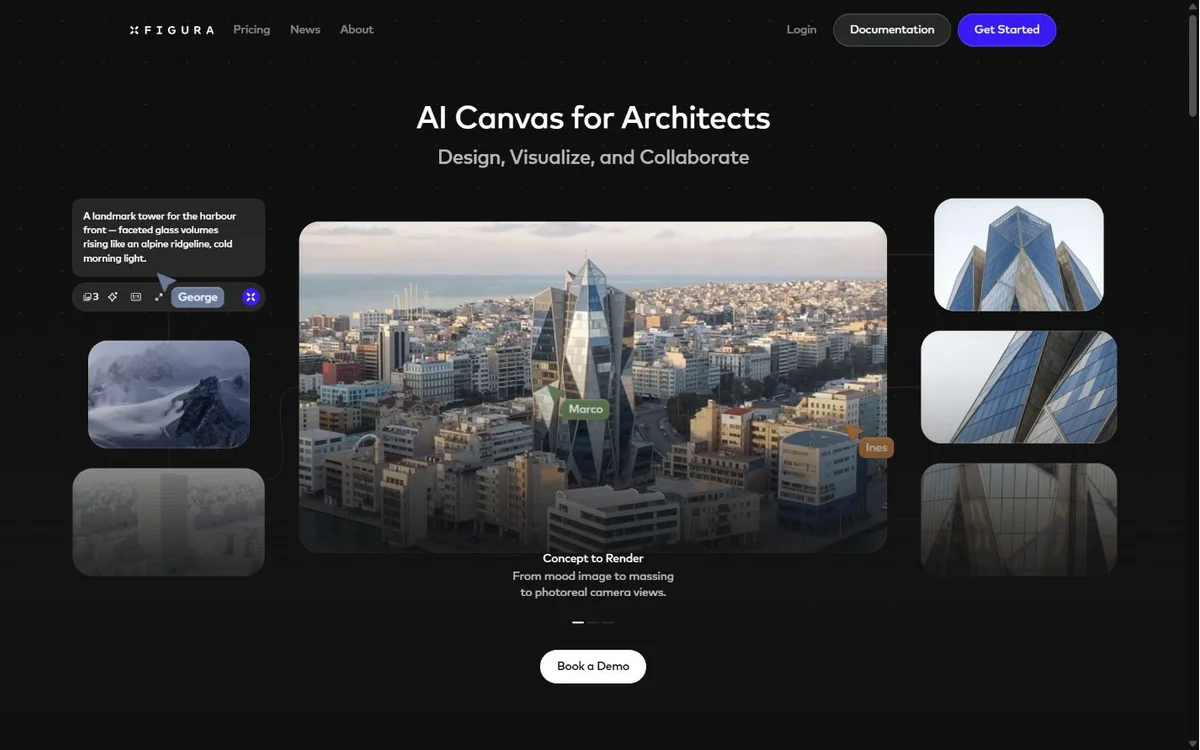
xFigura is positioned as an AI canvas for architectural design, visualisation and collaboration. Its examples bring model images, sketches and references into visual exploration.
The annual Starter plan is displayed at $16 per month with 400 monthly credits and ten canvases. Professional is $48 per month billed annually, with 1,200 monthly credits and private images and boards. Confirm commercial-use terms for Starter: its plan card and the pricing FAQ describe licensing differently.
7. Veras: AI visualisation in the Chaos ecosystem

Veras connects AI visualisation with supported CAD and BIM applications. Chaos lists integrations including Revit, SketchUp, Rhino and Archicad, alongside a web app and image-to-video workflows.
Starter is $16.90 per month billed annually at $202.80, with 500 monthly credits. Pro is $29 per month billed annually at $348, with 2,000 monthly credits. Match the host application and version to the integration you need; a feature shown in the web app may have a different route inside CAD or BIM.
8. mnml.ai: guided rendering and option boards
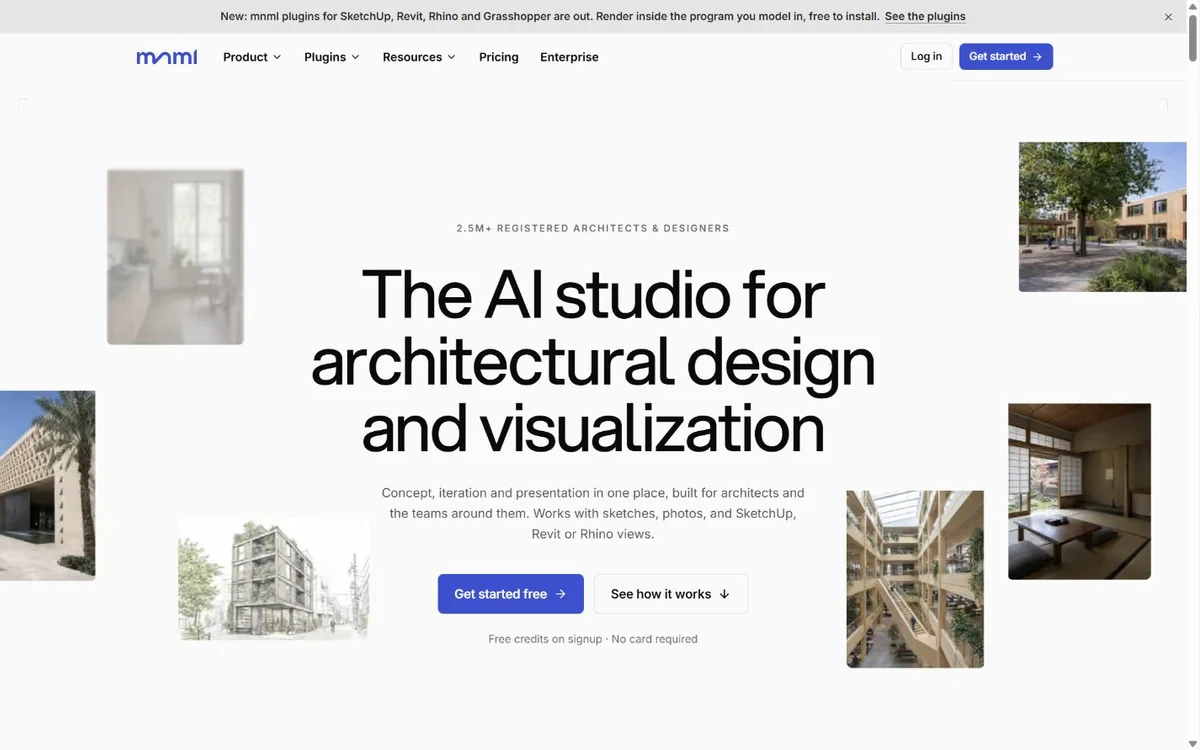
mnml.ai offers Studio for taking an image through rendering, editing and animation, and Flow for comparing and branching options on a board. Its site also lists modelling-software plugins.
Consider it when you want both guided image tools and a place to compare variants.
Check before choosing: which workflow you will use daily, how the source and its revisions remain connected, and the credit cost of the outputs you need. Verify plugin compatibility for your software version.
9. ComfyUI: custom generation pipelines
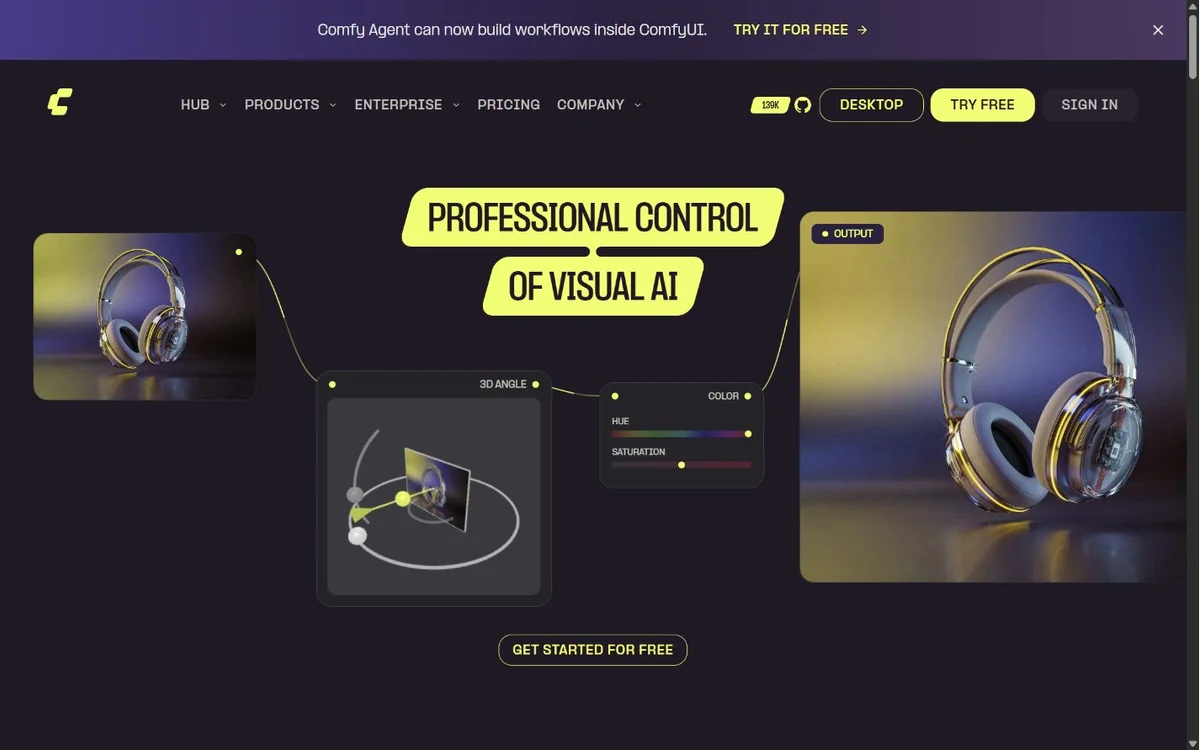
ComfyUI is an open-source, node-based generation system. You connect models and processing steps into reusable workflows, with local execution and an official cloud option.
Choose this route when someone in the practice wants to build and maintain the pipeline itself. It gives you configuration choices that a finished application may abstract away.
The commitment: budget for setup, model selection, updates and support. Hardware, hosting and paid API calls can still cost money. Privacy and commercial-use rights depend on the complete workflow, including models, nodes and remote services.
10. D5 Render: a model-based renderer with AI assistance

D5 combines real-time rendering with AI-assisted tools in a wider visualisation ecosystem. Its model-based workflow makes it a different kind of option from image-first generation tools.
Consider it when the 3D scene remains central to your deliverables, particularly for interactive presentation and repeat views.
Check before choosing: current system requirements, model compatibility and the setup your scene needs. Evaluate it as a production renderer with AI assistance, rather than assuming the same preparation as an image-to-render application.
What does Fenestra cost?
Fenestra Individual is $10 per month with 200 monthly credits. Pro is $35 per month with 1,000 monthly credits and lets the board owner invite editors. Annual billing costs $96 for Individual or $336 for Pro. Image and video costs vary by model and settings; check the credit cost shown before generating.
Prices in this guide were checked on 19 October 2026. Amounts retain the vendor’s currency; annual rates require an annual commitment. Credit counts are specific to each service and do not represent equal numbers of finished images or video clips.
What should an architecture practice compare?
Use a real project and keep the brief consistent. Start with a view containing a few awkward details: repeated windows, a curved surface, patterned cladding or furniture visible through glazing.
- Generate the first render. Check camera, proportions, openings and design character.
- Change one material. Look for changes outside the requested area.
- Create an alternative. Check whether you can return to the original source without carrying unwanted edits forward.
- Prepare the presentation. Assess stills, illustration, enhancement and video according to what you actually deliver.
- Review with someone else. Check how a colleague or client understands the options and records a choice.
Count the attempts you discard as well as the image you download. Compare the total cost and time of a usable result, then check commercial rights, privacy, output resolution and team access on the relevant subscription. Published vendor descriptions establish what to try; they do not replace a project trial.
Bring a sketch or model view into Fenestra. The 3D to Render guide covers model setup, and the architectural rendering styles guide shows how to develop different visual treatments. For rooms and fit-outs, compare the interior-design tools.


