

The best AI interior design tool depends on what you need to leave with: an image of your room redesigned, furniture you can buy, an editable 3D layout, or a set of visuals you can develop with a client.
Fenestra combines interior renders, targeted edits and presentation video in one workspace. Create a render from the design you already have, develop its materials and atmosphere, then make the stills and video you need to present it. The image comparison and animation below show that workflow on an existing Fenestra project.
For room makeovers and shopping, consider MeltFlex and REimagineHome. For editable room planning, consider Coohom. Gendo, Visoid, xFigura and Spacely AI are relevant professional alternatives, while ComfyUI suits teams that want to build their own generation pipeline.
AI interior design tools: strengths and tradeoffs
| Tool | Best fit | Strengths | Tradeoffs |
|---|---|---|---|
| Fenestra | Design development and presentation | Reference-led renders, edits and video; solo work or shared Crit Space boards | Visualisation rather than measured room planning; editor invitations require Pro or above |
| Spacely AI | SketchUp-connected visualisation | Rendering, furnishing and lighting tools; extension and Team Canvas | Extension workflow depends on a compatible SketchUp setup |
| Visoid | Model-to-render studies | Modelling-software plugins and reference-led material exploration | Plugin compatibility and output resolution depend on software version and plan |
| MeltFlex | Room redesign and shopping | Photo redesign linked to furniture discovery | Product sizes, finishes and regional availability still need checking |
| REimagineHome | Staging existing room photographs | Furnishing, object removal and surface restyling | Photo transformations need checking against the original room |
| Coohom | Editable layouts and furniture placement | Floor planning, model library and 3D rendering | Requires plan and scene setup rather than just an image-generation brief |
| Gendo | Architectural image iteration | Targeted material edits, conversational tools and a design canvas | Image-led workflow; modelling and construction documentation remain in other software |
| xFigura | Shared architectural exploration | References and design images together on an AI canvas | A canvas workflow to learn if you only need a quick photo restyle |
| ComfyUI | Custom image pipelines | Reusable node graphs and configurable model workflows | Setup, updates and model licences to manage; hardware or hosting costs |
Working across buildings, facades and landscapes too? See our best AI rendering software for architects.
1. Fenestra: for developing and presenting interior design options
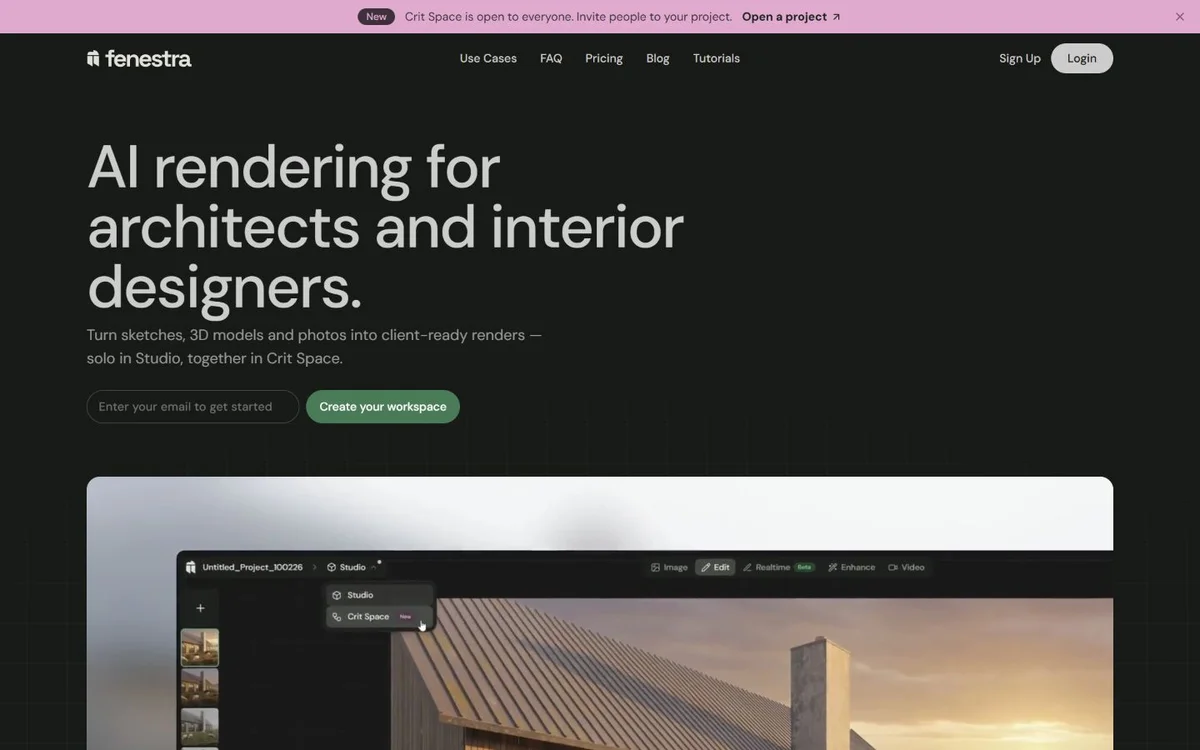
Fenestra brings image creation, editing and animation into a workspace built for architects and interior designers. You can work from sketches, model views or photographs, then review options with colleagues and clients in Crit Space.
The client likes the palette but wants different joinery. You need a quieter lighting scheme, a second option and a short clip for the presentation. Fenestra gives you tools to keep developing that project, with your references guiding the visual direction.
From a model view to an interior render
This example starts with a simple 3D view. The 3D to Render guide explains how to frame a model and connect it to an image generator. Drag the divider to compare it with the finished Fenestra render: timber finishes, lighting and the landscape beyond the glazing turn the model view into a presentation image.


From the still image to video
The render becomes the starting frame for an AI camera move. The clip below is an existing Fenestra example made from that interior still, rather than a camera animation rendered from a fully prepared 3D scene.
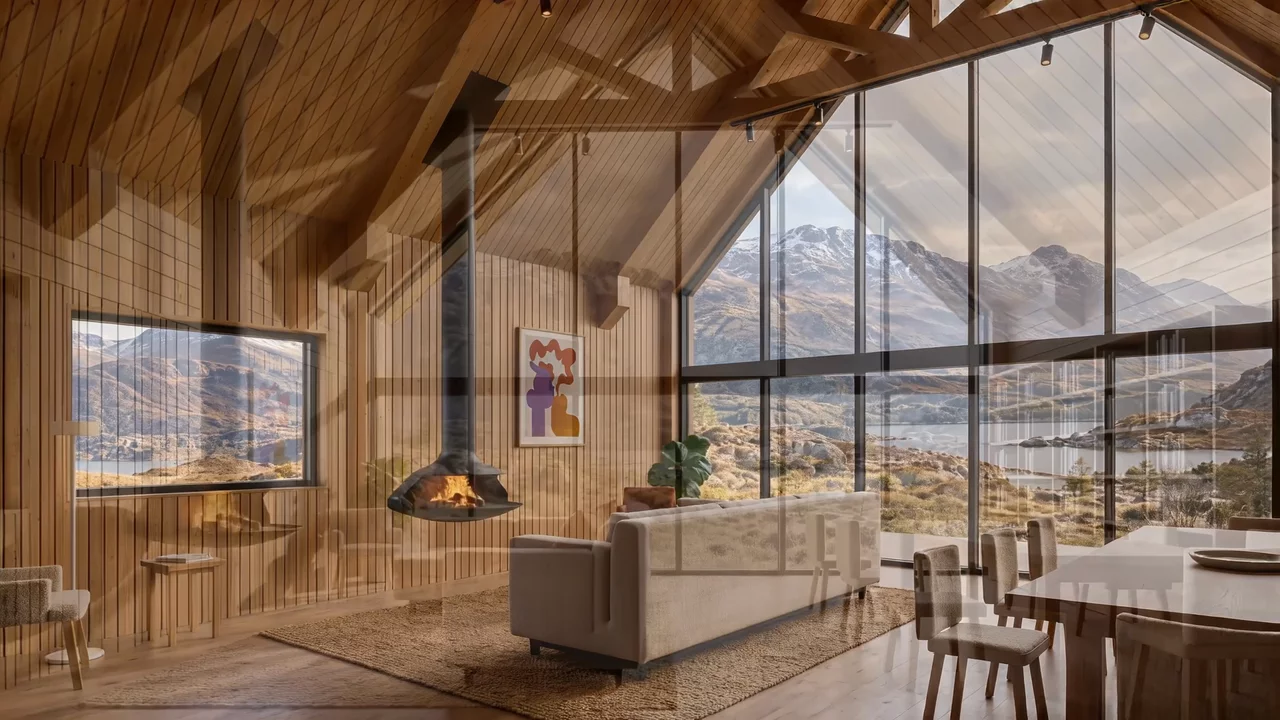
That gives a designer both an image for the board and a moving view for the presentation. See the full model-to-render and walkthrough example for the inputs and alternative shots.
Work solo or bring the team into Crit Space
Develop the interior on your own, then bring colleagues or the client into the same project when there is something to discuss. In Crit Space, references, renders and video sit together on a board. Group your preferred options, add notes and mark up a render where you want a change.
Invite viewers to review, or editors to generate and work alongside you. You can also share a public viewing link for a client presentation. The team video and live board below show how the work can move from an individual design session into a shared review.
Viewer invitations and public links are available on every plan. Inviting editors requires the board owner to be on Pro or above; invited people use their own credits for generation. See Crit Space access for the details.
Scope: Fenestra produces visualisations and presentation video. Check generated details against your drawings and specifications; AI video infers newly revealed parts of a scene. Use a measured planning tool for dimensions and furniture clearances.
Explore Fenestra's workflows, editing tools and current plans.
Try it on your project: open Fenestra, bring an interior image or model view, and develop one design direction before making a second.
2. Spacely AI: for a SketchUp-connected rendering workflow
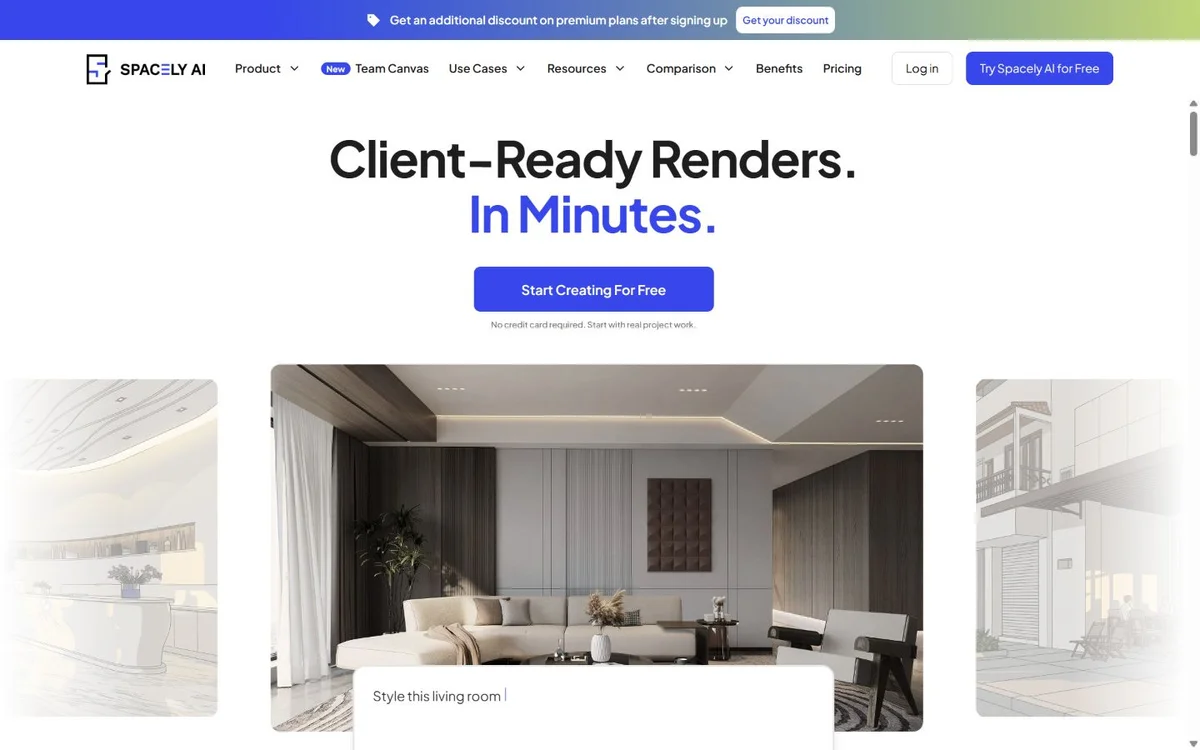
Spacely AI offers AI rendering and editing for interiors, with tools for lighting, furnishing and enhancement. It also advertises a SketchUp extension and a shared Team Canvas.
Personal costs $25 per month for 500 credits and one seat. Studio costs $50 per month for 1,500 credits and up to two seats, adding Pro rendering and 4K output. Team collaboration is listed as an add-on, so check its cost separately from the seat allowance.
3. Visoid: for rendering alongside your modelling software
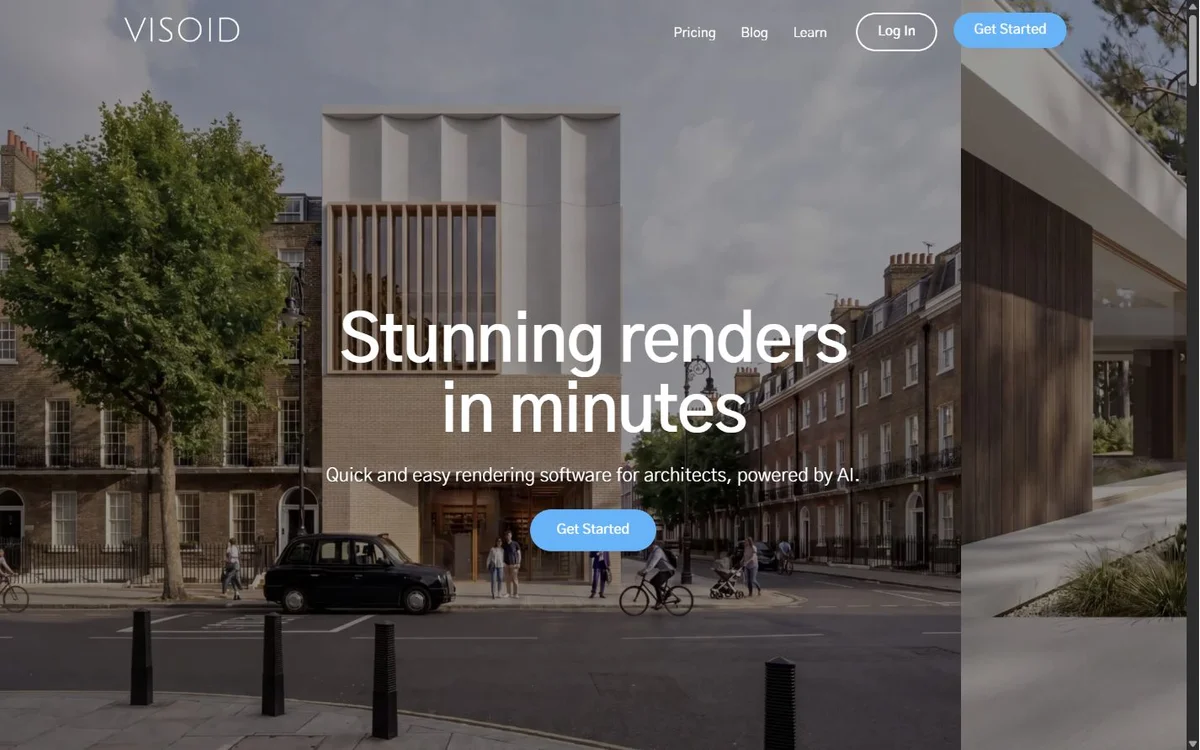
Visoid positions itself as AI rendering software for architects. Its site lists plugins for SketchUp, Revit, Rhino, Archicad and Miro, alongside reference-image workflows and material exploration.
The Pro plan is $29 per month with 500 credits and output up to 2K. Premium is $79 per month with 2,000 credits and output up to 4K. Check your modelling-software version against the relevant plugin before subscribing.
4. MeltFlex: for room redesign connected to furniture shopping
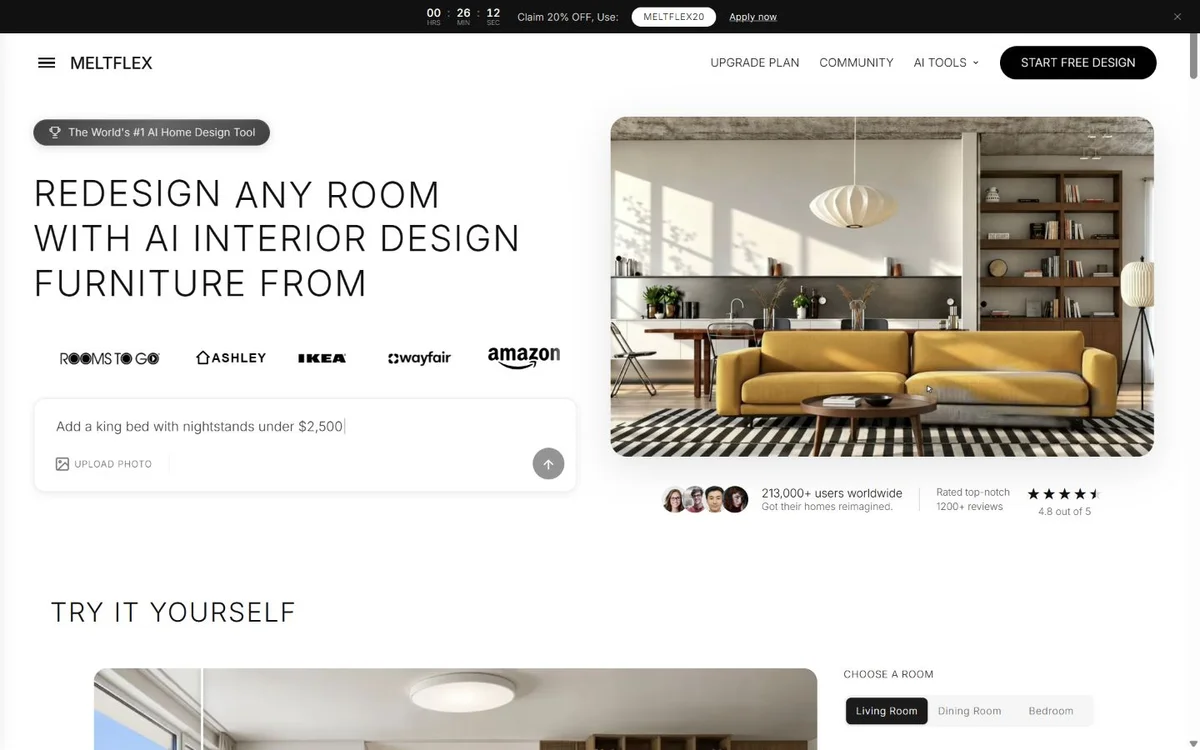
MeltFlex puts the homeowner's room at the centre of the experience. Its site promotes photo redesign, floor-plan visualisation and furniture shopping from retailers including IKEA, Amazon and Wayfair.
That makes it worth considering when the next decision is what to buy for an existing space. Evaluate the connection between the generated image and the product listing, as well as the appearance of the room.
The tradeoff to check: confirm that the linked piece is the one you intend to order, in the right size, finish and region. Measure the room and delivery access before purchasing.
5. REimagineHome: for photo-based staging and redesign
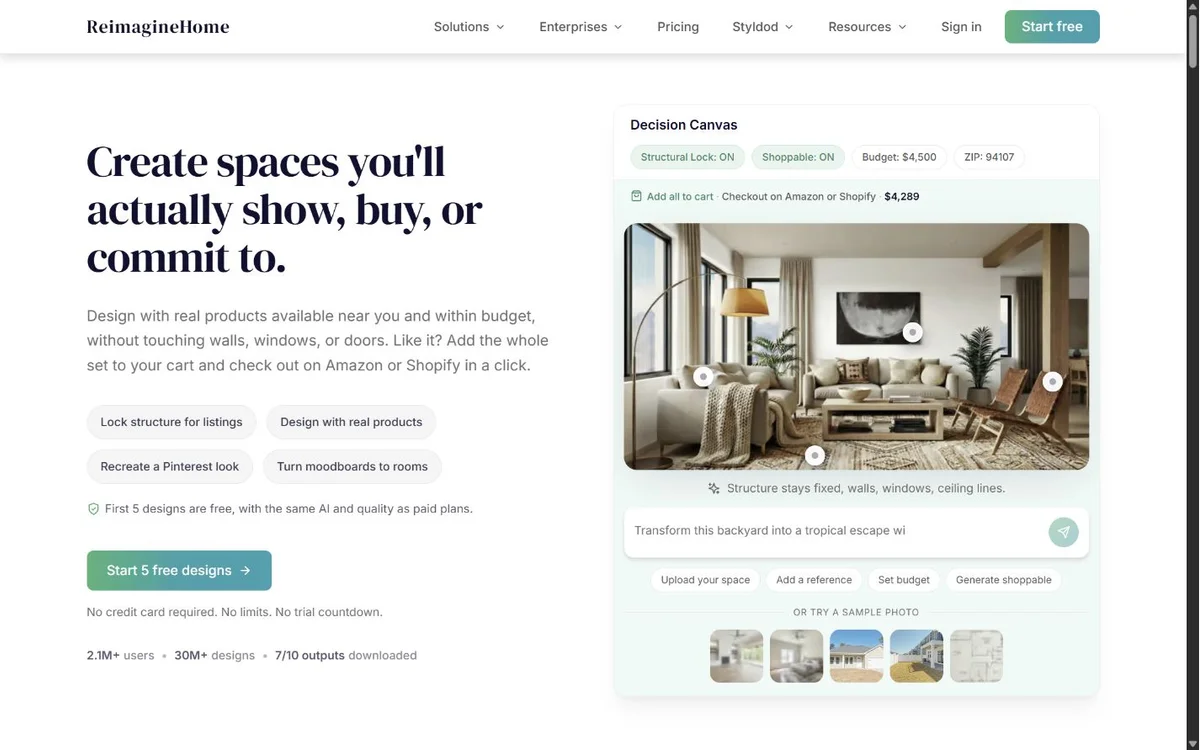
REimagineHome offers virtual staging, room redesign, object removal and surface changes. Its site also promotes structural controls and shoppable products.
Essential is $19 per month for 30 credits and legacy tools. Reference images, conversational editing and real-product features start on Pro, at $36 per month for 200 credits. Choose by the editing tools you need as well as the number of images.
6. Coohom: for planning and furnishing in 3D

Coohom combines floor planning, a furniture-model library, 3D visualisation and AI design tools. Its workflow includes drawing or uploading a plan, arranging furniture and rendering the space.
Consider it when you want an editable layout to work through before making images. Moving furniture within a model is a different task from asking an image tool to depict a new arrangement.
The tradeoff: allow time to set up the plan and furniture. Check the measurements and model dimensions before treating the layout as a purchasing or installation plan.
7. Gendo: for architectural editing on a design canvas
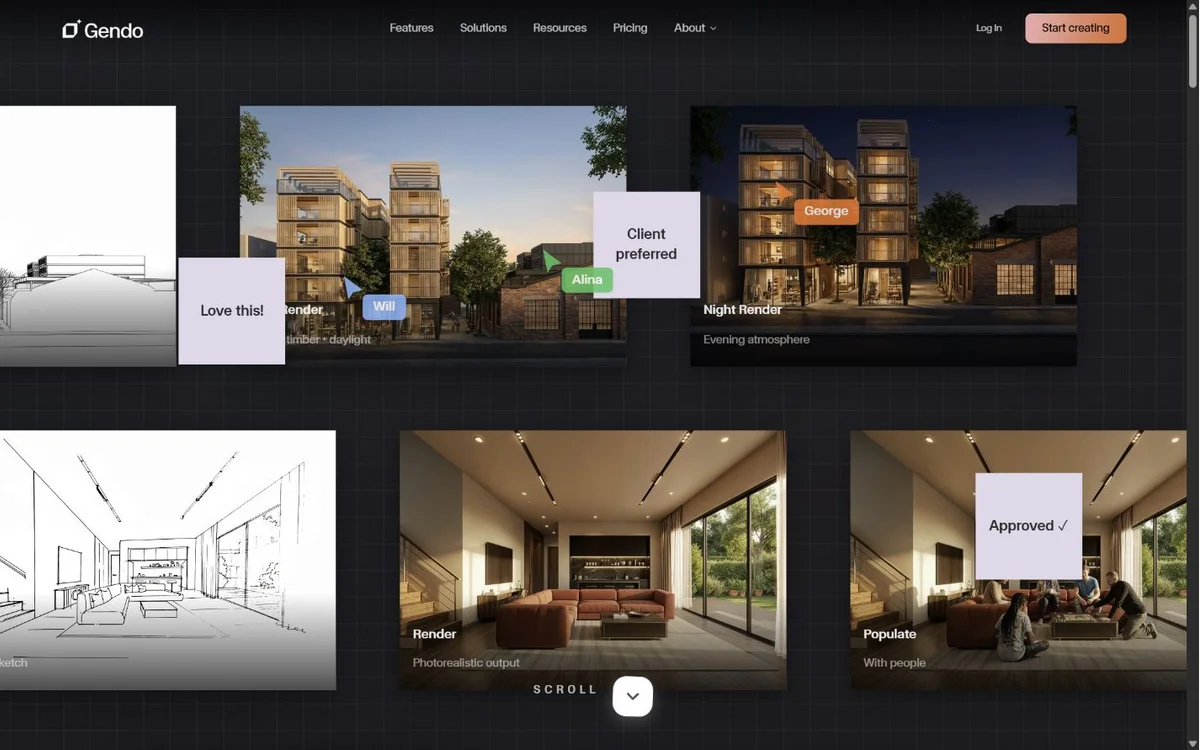
Gendo combines a design canvas with architectural rendering, region-based material changes, conversational editing, variations, upscaling and video tools.
It is a relevant alternative when your work involves changing an existing design image repeatedly: testing finishes, adding entourage or exploring lighting. Compare the editing workflow with Fenestra on a real interior, including the second and third revision.
Studio pricing is £79 per month, or £790 billed annually, for up to five team members. Unlimited image generation is subject to fair use. Studio includes a one-time 15 seconds of video; further video needs packs or the higher Studio Scale plan. Budget for that distinction if animation is a regular deliverable.
8. xFigura: for a shared architectural AI canvas
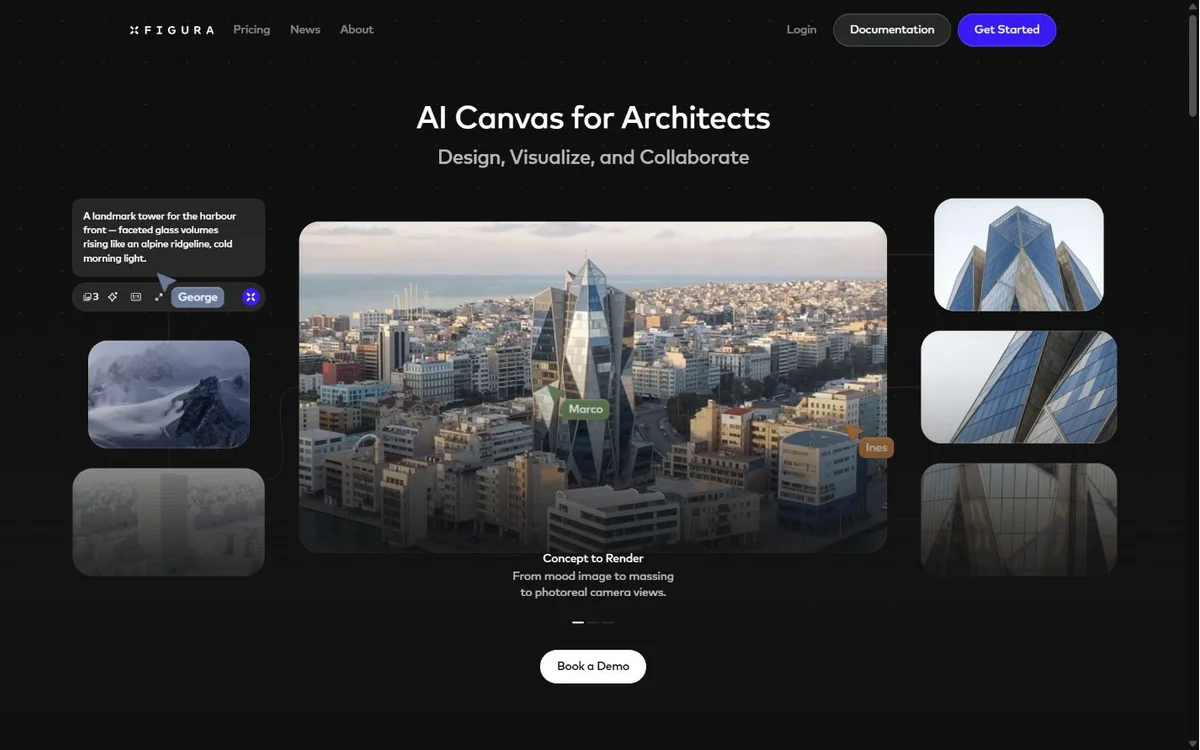
xFigura presents itself as an AI canvas for architects, focused on design, visualisation and collaboration. Its examples connect sketches, model images and references with architectural visuals.
The annual Starter plan is displayed at $16 per month with 400 monthly credits and ten canvases. Professional is $48 per month billed annually, with 1,200 monthly credits and private images and boards. Confirm commercial-use terms for Starter: its plan card and the pricing FAQ describe licensing differently.
9. ComfyUI: for building your own generation workflows
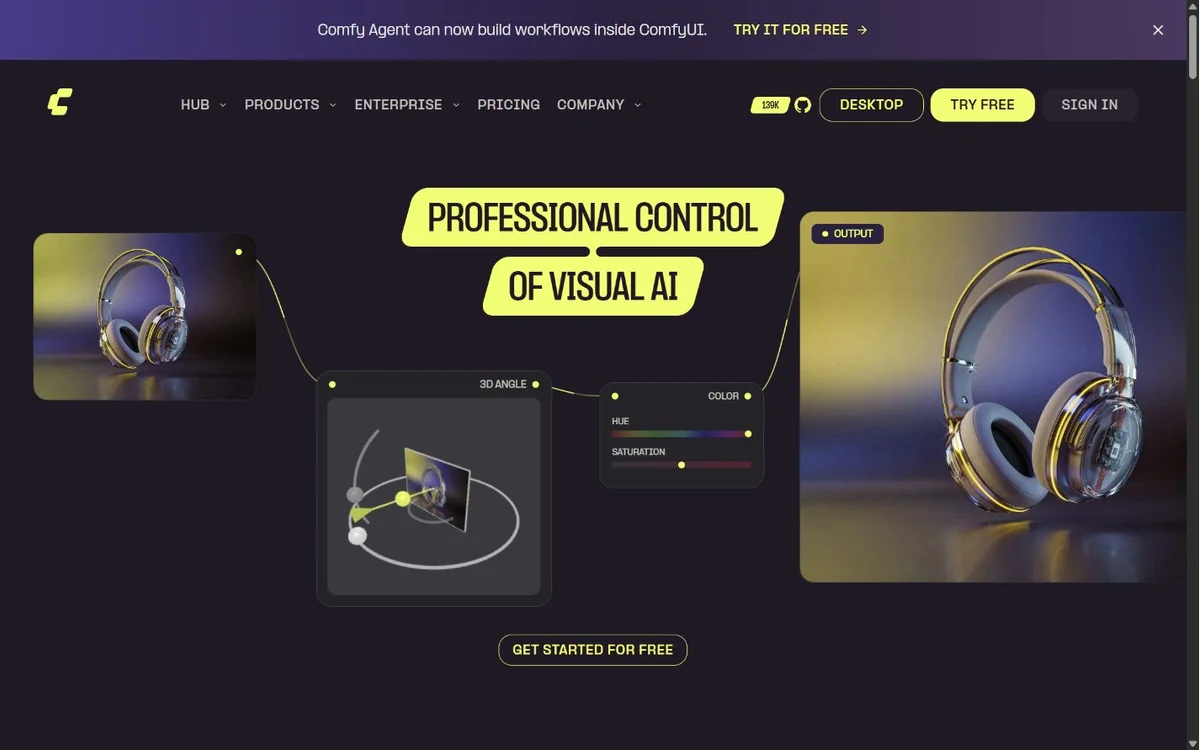
ComfyUI is an open-source, node-based system for building and reusing generation workflows. It supports local execution and has an official cloud option. What it can produce depends on the models, nodes and settings you choose.
Consider it when someone in your studio wants to own the pipeline: connecting generation, conditioning and enhancement steps, saving the workflow and adapting it to repeat tasks. It is a different commitment from selecting a finished interior-design application.
The tradeoff: setup and maintenance become part of the job. Local software being open source does not make hardware, hosting, paid model calls or support time free. Check the licences of the models and extensions you use as well as ComfyUI itself.
What does Fenestra cost?
Fenestra Individual is $10 per month with 200 monthly credits. Pro is $35 per month with 1,000 monthly credits and lets the board owner invite editors. Annual billing costs $96 for Individual or $336 for Pro. Image and video costs vary by model and settings; check the credit cost shown before generating.
Prices in this guide were checked on 19 October 2026. Amounts retain the vendor’s currency; annual rates require an annual commitment. Credit counts are specific to each service and do not represent equal numbers of finished images or video clips.
How to choose an AI interior design tool
Start with the decision you are trying to make.
“What could this room look like?” Start with a photo-redesign workflow. Use one clear photograph and a specific brief so you can judge whether the result is relevant to your space.
“Which furniture should I buy?” Look for product references and shopping support. Check exact dimensions and availability outside the generated image.
“Where should everything go?” Start with a measured layout and an editable planning tool. An attractive image alone does not establish that a table, chair or circulation route fits.
“How do I show the client three directions?” Evaluate editing, project organisation and review as carefully as the first render. The useful tool is the one you can keep working in after the client asks for a change.
Try one project before choosing a subscription
Use the same input and brief across your shortlist. For example:
Keep the existing windows, doors and camera position. Change the cabinet fronts to light oak and the wall finish to warm white. Keep the floor and furniture unchanged.
Then ask for a second revision: change only the cabinet fronts to dark walnut.
Compare the two results with the original. Did the requested finish change? Did anything else move? How much correction was needed? Keep the unsuccessful attempts in your comparison, because those attempts consume time and credits too.
For pricing, compare the cost of finishing that task, including revisions and downloads. Check output resolution, commercial-use terms, privacy, watermarks and team access on the current plan. A monthly subscription price alone does not tell you what a finished project will cost.
For a first project, open Fenestra with an interior image or model view. Use the interior rendering prompts to describe materials and lighting, then follow the editing guide when you need to change one detail.


