Realtime AI Image Generation for Architecture and Interiors

Shaun McCallum
March 30, 2026Move the camera, change a material, switch style. The render keeps up at 15+ FPS.
Realtime AI image generation is live in Fenestra Studio. Bring in a 3D model view, a sketch, a rendering or a flat photo, and the render keeps up at 15+ FPS as you move the camera, change the prompt or switch style.
If you've used Nano Banana 2, it's the same kind of editing, but much faster.
It starts from your geometry rather than a text box, so the output stays recognisably your building. Changing "timber" to "dark timber" updates the render as you finish typing.
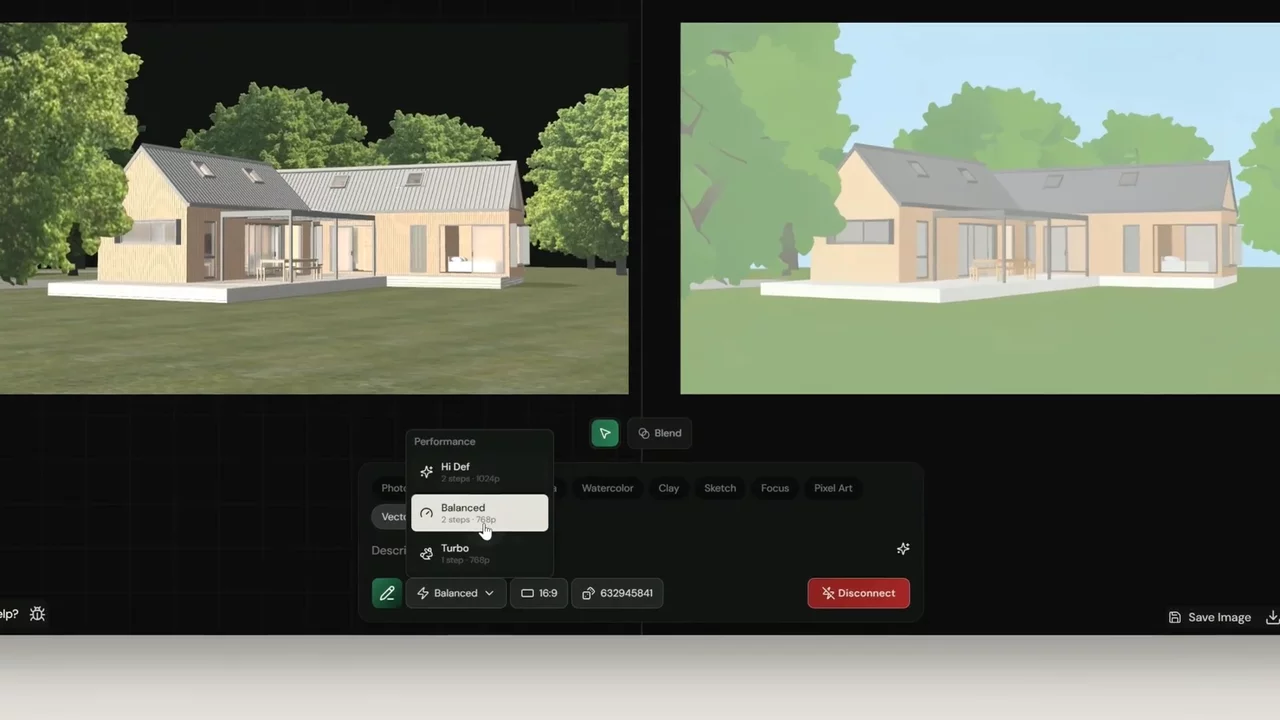
Side by side mode
Your input sits on the left and the output on the right. Pan and zoom around the input freely. The 3D controls adjust the camera and switch between saved preset views, so you can walk a client through north elevation, courtyard and interior in one sitting without queuing a render for each.

Blend mode
Blend overlays the input and output with a slider between them. Pull toward the input to check the geometry you started from, toward the output to see the render, or hold it in the middle to see how far the model has moved from the drawing.
That middle position is the useful one in a review. It answers "is this still my building?" without leaving the canvas.
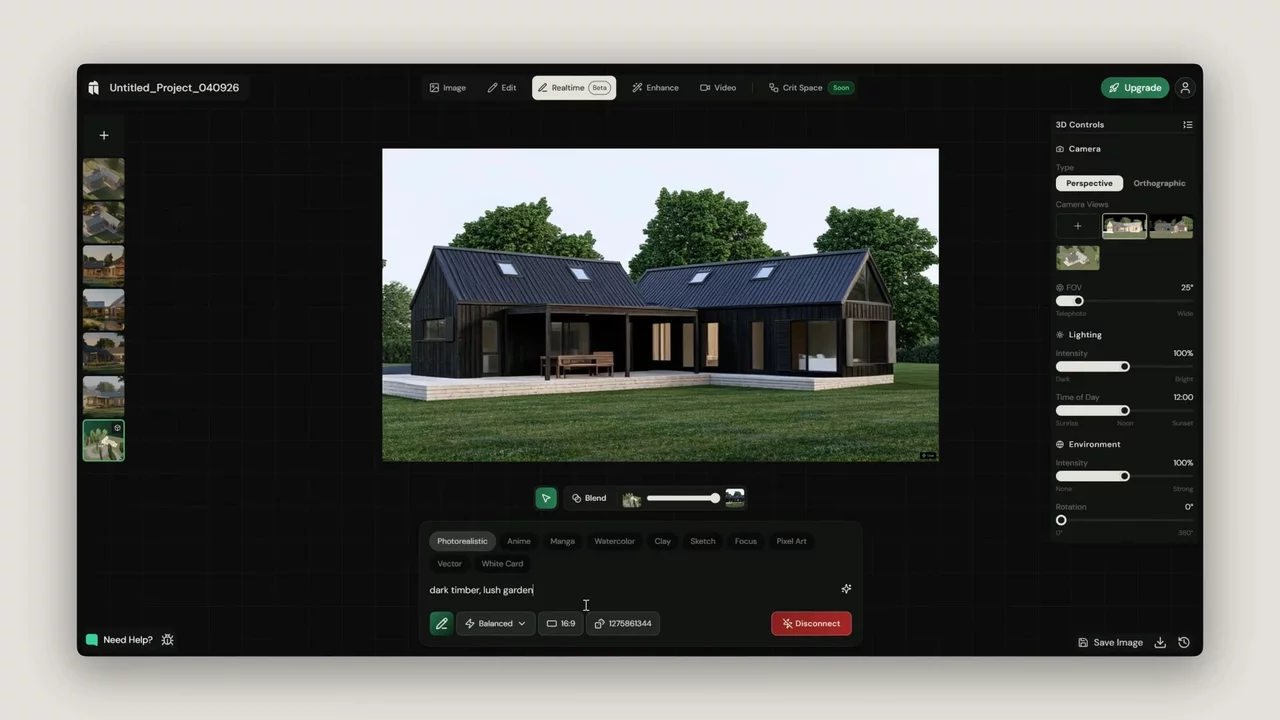
Realtime AI styles in one click
Style chips sit in the prompt bar: Photorealistic, Sketch, Clay, Watercolor, Vector and more. Pick one and the output changes straight away, no extra prompting.
Architects can show a concept as a sketch early and photoreal later from the same model, without rebuilding anything. Interior designers get Clay, which strips colour back to form when a client keeps reacting to the cushions instead of the layout.
Materials, lighting, environments and weather all work the same way. Prompts stay simple because you're adjusting a scene, not describing one from scratch.
Turbo, Balanced and Hi Def quality settings
Three modes, chosen per session:
- Turbo for fast exploration when you're still deciding.
- Balanced for most work, and the one to leave it on.
- Hi Def for the frame you're actually keeping.
How to start a realtime session
Click Connect to start a session. The first connection takes 10 to 20 seconds while compute spins up, then it stays live until you go idle. Fenestra disconnects you automatically to protect your credits, and Connect picks up where you left off.
Realtime doesn't save images automatically, so save the ones worth keeping before you disconnect.
Try Realtime
Render Now!Where realtime fits in your workflow
Set up your model and saved camera views in Edit — Working with 3D Models first, and the session starts with every view already framed. Saved Realtime images can be animated afterwards with Video.
Full setup steps are in the Realtime documentation.
Related Articles

Bring Back Drawings, Not Just Photos
Turn your own projects, or the buildings you photograph on site visits and study trips, into pen, doodle, watercolour and rubber stamp studies. Four prompts, one consistent visual language.

How to Make an Architectural Walkthrough From a Single Render
Make a walkthrough video from one render, photo or sketch. Pick the camera move, get an MP4 back in minutes, and skip the 3D scene and the render farm.

Animate Between Start And End Frames
Use Nano Banana architecture prompts and Fenestra AI to animate between day and night views, turning static renders into cinematic architectural videos.
 AI rendering software for architects. Turn sketches, CAD drawings and 3D models into photorealistic renders and animations, in your browser.